1. Navigate to the course where you would like to add your Codon link into Blackboard.
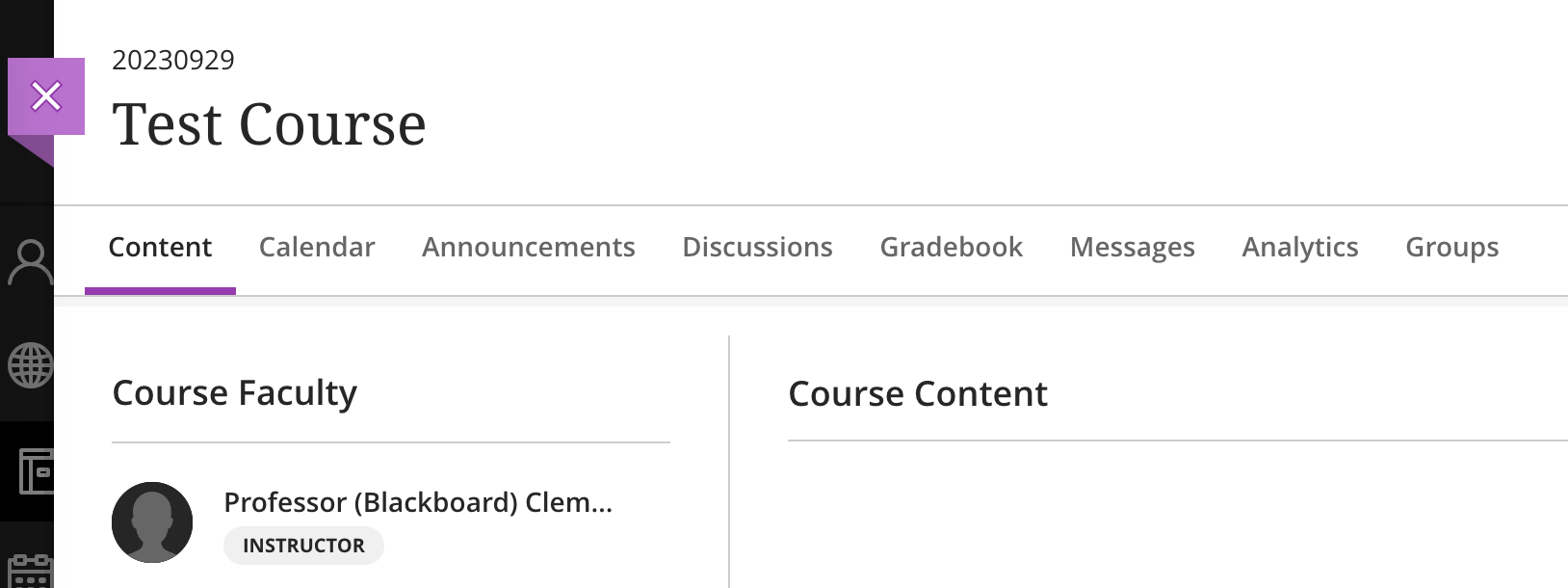
2. Click on "Content" in the top left.
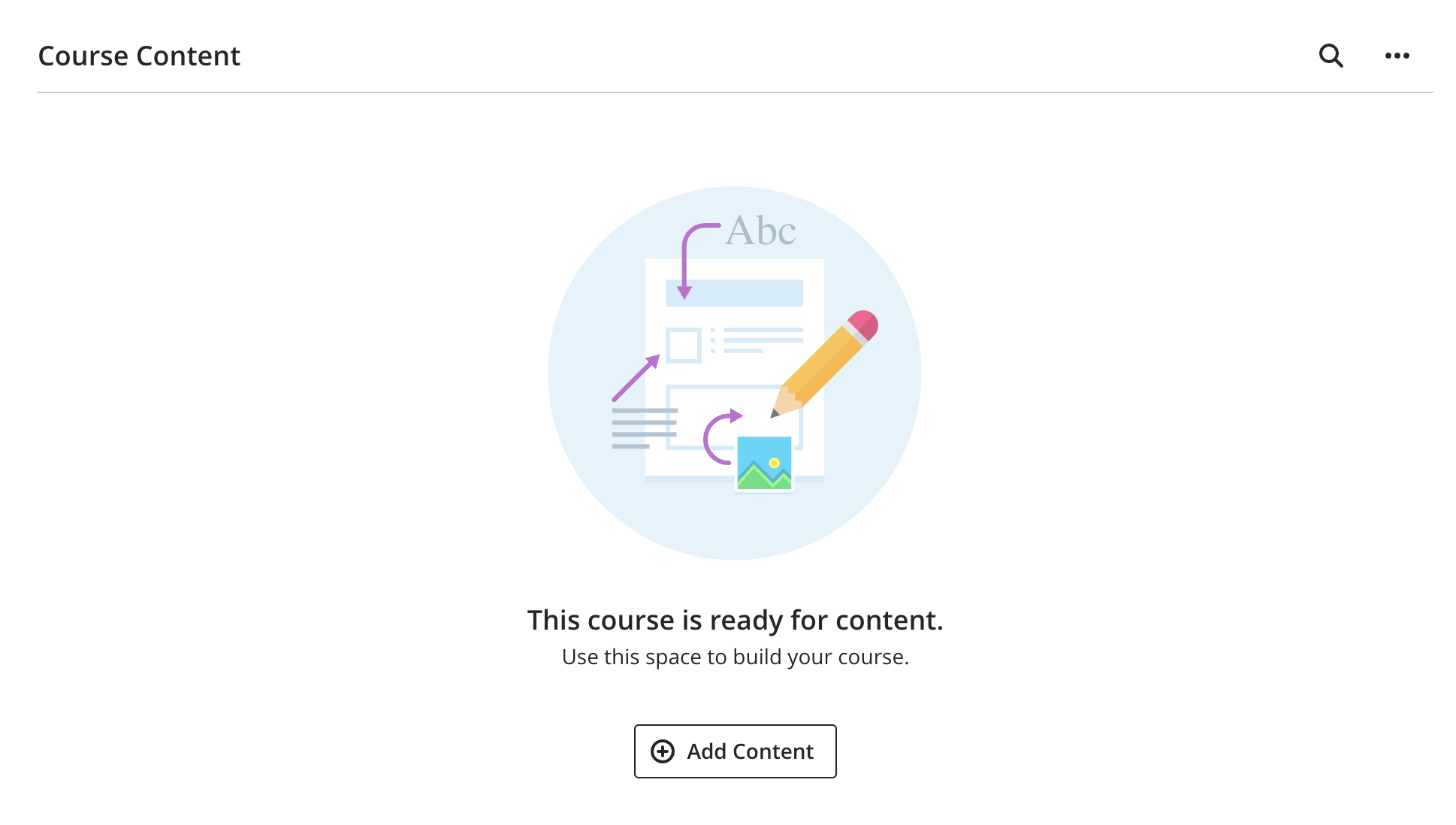
3. Click "Add Content". ("Build Content" in Blackboard Original)
Starting Fall 2025, Codon now supports two modes of LMS integration. Before moving to step 3, determine whether your institution has a direct Codon integration or an integration via Follett/Willo Labs. If you're not sure, check the email where you received a link to this article, or ask your ESS!If your institution supports direct integration
4. From Blackboard Ultra: Click "Content Market" and find Codon Learning Direct LTI 1.3 from the list of available tools. Click on the "+" button to add this tool to your Blackboard page. (If you click on the link directly, it will take you to Codon Learning but not add the tool to your Blackboard page).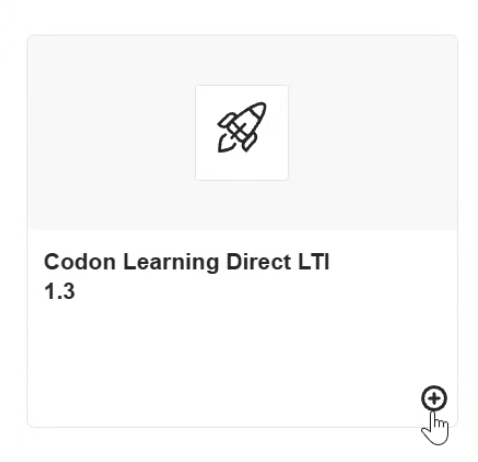
From Blackboard Original: Select the Codon Learning Direct LTI 1.3 tool in the Build Content dropdown menu.
5. Continue to Step 6.
If your institution uses integration via Follett/Willo Labs
Does your institution still use Blackboard Original? Check out this article instead.
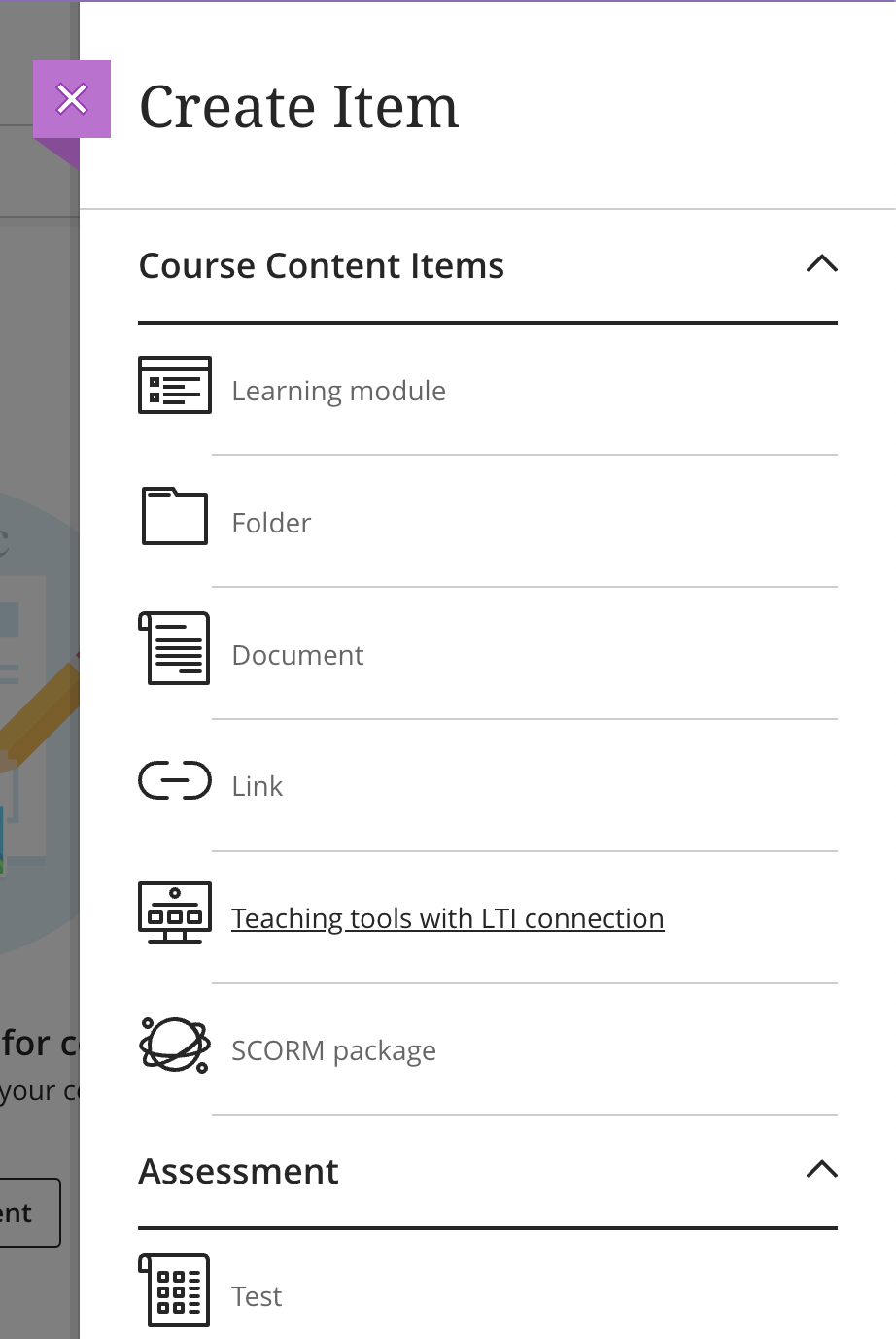
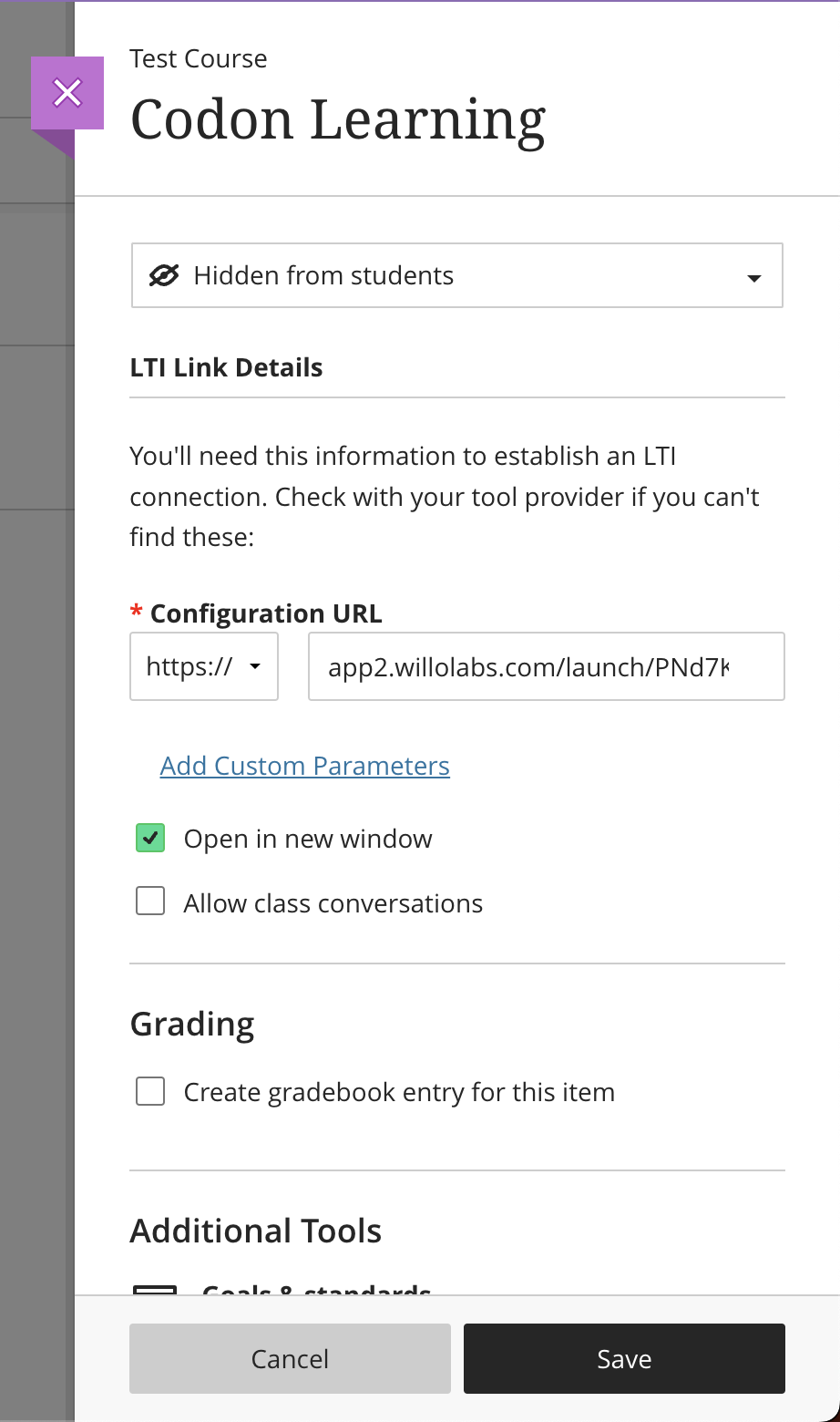
4. Click "Create" and then "Teaching tools with LTI connection" under Course Content Items.
5. Configure the tool and then Save.
- Rename the link from "New LTI Link <date>" to something that will let the students know what the link is being used for. For example: Codon Learning.
- Add the URL provided by your Education Support Specialist.
- Make sure that the checkbox "Open in new window" is checked.
- You do NOT need to "Add Custom Parameters" or "Create gradebook entry for this item".
- If students have access to the course already, we recommend waiting to make the link visible to students until after you have finished set up.
For all integrations
6. Click on the "Codon Learning" link you just added to your course.
7. Select the correct Codon course (you may only have one in the list). Click "Save Selection." You will never have to repeat this step.
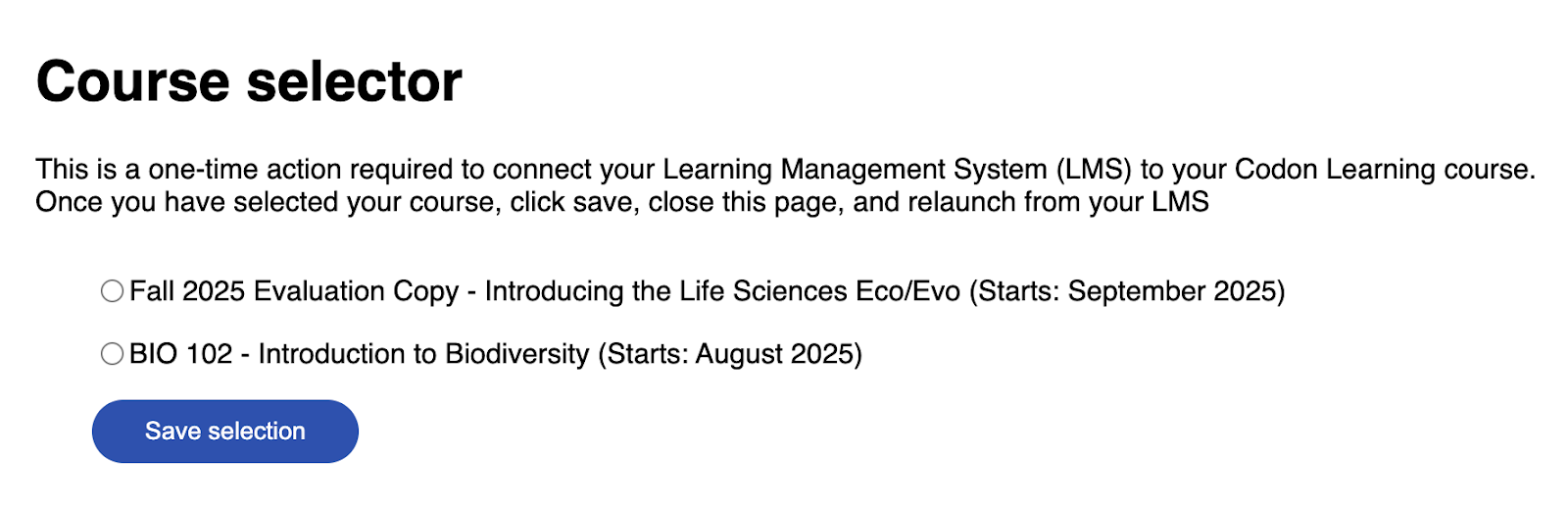
8. Close the tab, reload your LMS page, and click the Codon link again. This should launch the "Course Overview" page of your Codon Learning course.
To start setting up grade sync, check out this article: How to sync grades to the LMSFYI: How students access Codon
*They will also receive these instructions in the first day / onboarding materials sent to you by your ESS.
1. Students navigate to Content in your Blackboard course.
2. Students click on the Codon Learning link.
3. The first time students click this link, their account is created in Codon automatically. They will be asked to review the Terms of Service and then they will proceed into your course.
4. Going forward, they will return to the Blackboard link to sign in to Codon.
Was this article helpful?
That’s Great!
Thank you for your feedback
Sorry! We couldn't be helpful
Thank you for your feedback
Feedback sent
We appreciate your effort and will try to fix the article