Set up steps:
Create placement
Notify Codon
Test launch
Please reach out to integrations@codonlearning.com for questions or support.
Create placement
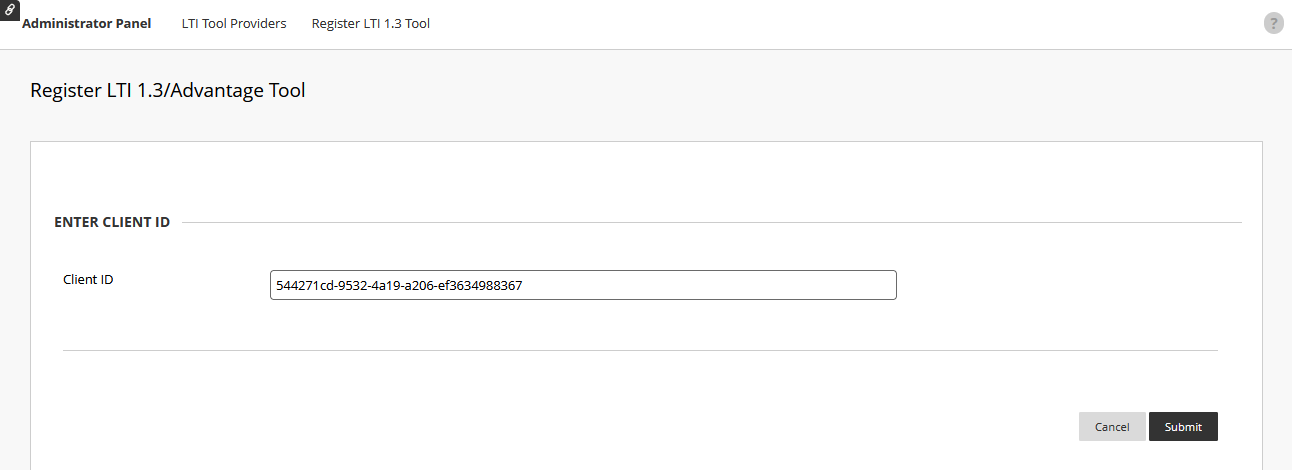
From the admin panel, navigate to LTI Tool Providers > Register LTI 1.3/Advantage Tool.
- Enter Application ID and Click Submit.
US Schools: 544271cd-9532-4a19-a206-ef3634988367
Canadian schools using US Blackboard: 6d86387f-35fc-4b91-b758-4bbbbaf0542b
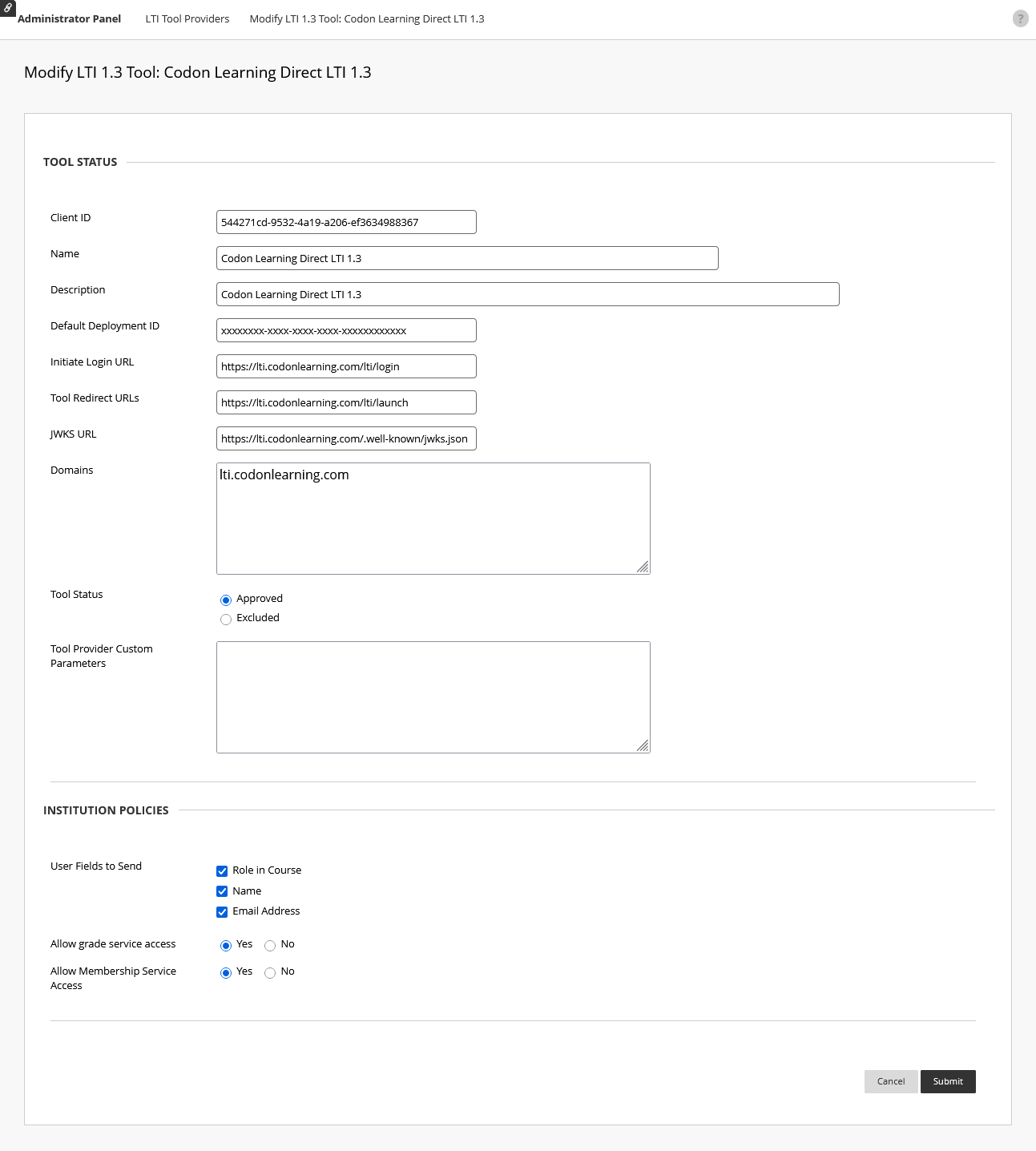
Canadian schools using Canadian Blackboard: contact integrations@codonlearning.com - Adjust settings in tool.
- Tool status: Approved
- User fields to send: All
- Allow Membership Service Access: Yes
- Click Submit to save settings.
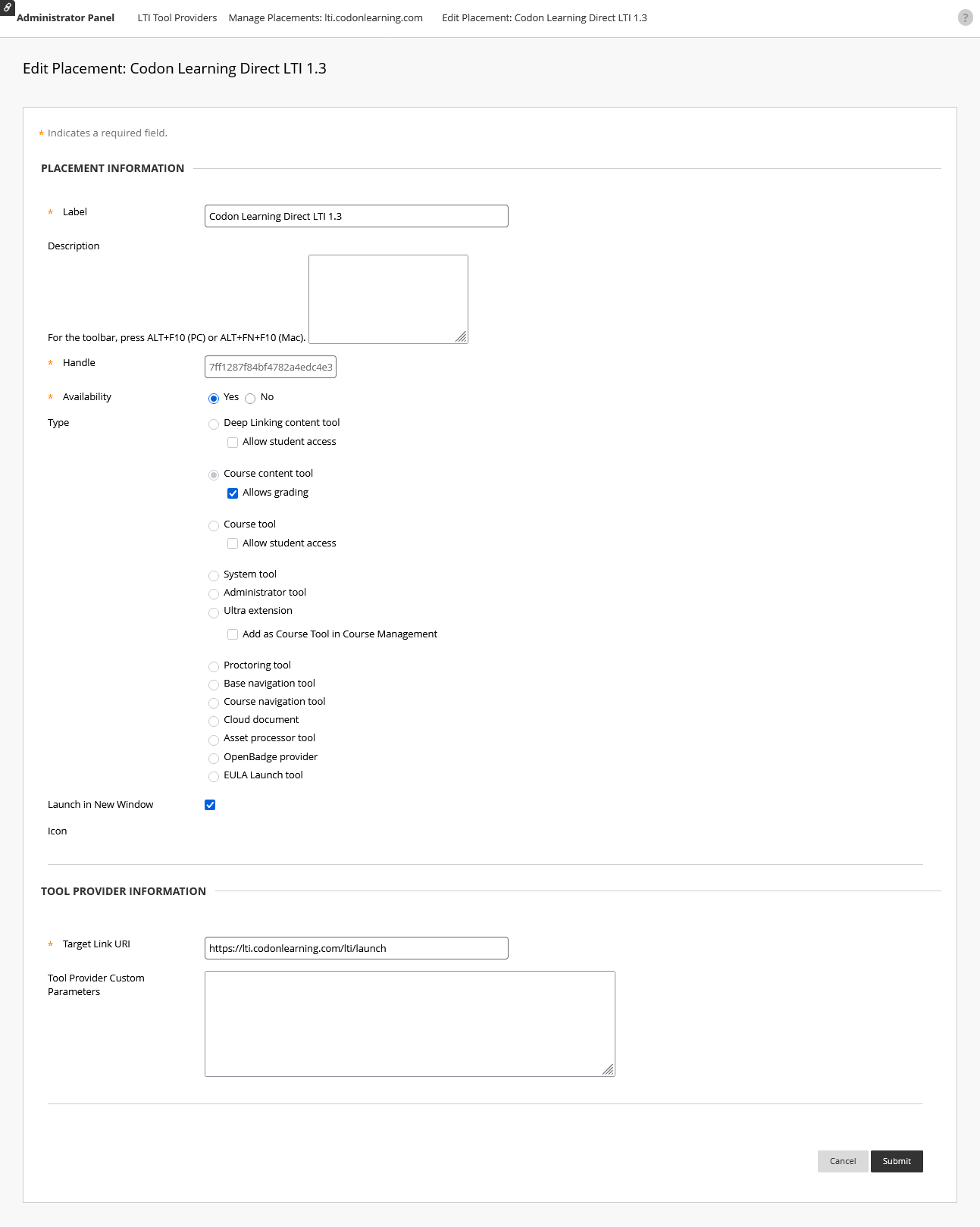
- Manage placement to confirm the settings:

- Availability = yes
- Allows grading
- Launch in new window
Please note: Instructor launch and course linking requires a pre-existing account in Codon matching the Blackboard instructor username.
Notify Codon
Email integrations@codonlearning.com to let us know when you've done the steps above so we can finalize the integration. Please include:
* If testing, the email address for an instructor Blackboard account you'll use to test. All instructors must have a pre-existing account and course in Codon for launch to work. We'll be happy to set one up for you.
* If setting up a course link on behalf of an instructor, the instructor name and course name planned for setup, so we can let that instructor's support specialist know and verify that a Codon course is ready for linking.
* If the placement is limited within institutional hierarchies/access, so we can make sure to request additional access in the future if needed.
Test launch
Logged in as an instructor in Blackboard, open a test course.
OR if setting up the link in a real course on behalf of the instructor, please be sure to impersonate the instructor when launching from Blackboard to Codon so that the instructor’s user information (not yours) is sent via LTI launch.
Add the external tool link to course Content, as usual (varies by Blackboard ULTRA vs Original).
Launch to Codon Learning by clicking on the external tool link you just added. When prompted, click Load Codon Learning in a new window.
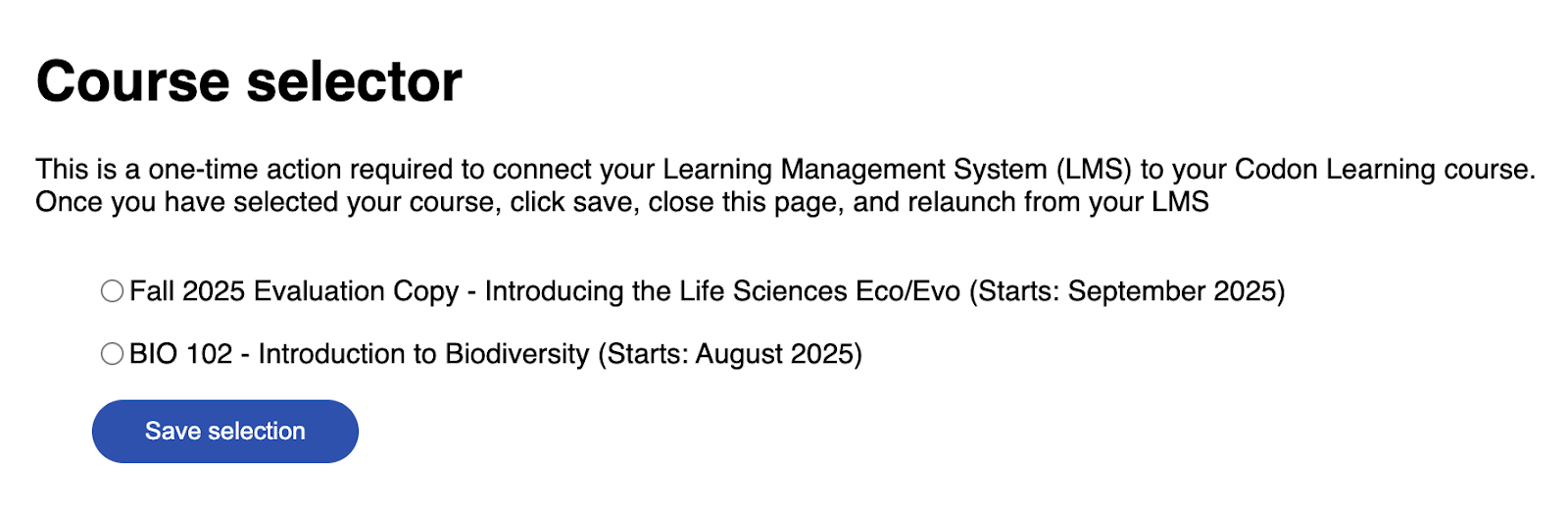
Select the correct course to link with your Blackboard course. Click Save selection. This is a one time step for each course.
If testing, LMS Test Course is a simple course for confirming functionality of the LMS integration. If you plan to test in multiple environments (e.g. a test environment and prod environment), please let your contact at Codon know so that they can add multiple LMS Test Courses.
If setting up on behalf of the instructor, confirm you are selecting the correct course and section.
You should see a message Please close this page, and relaunch your Codon Learning course from your LMS. This means you are successfully connected.
If you relaunch the course from Blackboard you will see Codon’s instructor course homepage.
Was this article helpful?
That’s Great!
Thank you for your feedback
Sorry! We couldn't be helpful
Thank you for your feedback
Feedback sent
We appreciate your effort and will try to fix the article