Set up steps:
Register Tool
Notify Codon to finalize set up
Test launch
Please reach out to integrations@codonlearning.com for questions or support.
Register Tool
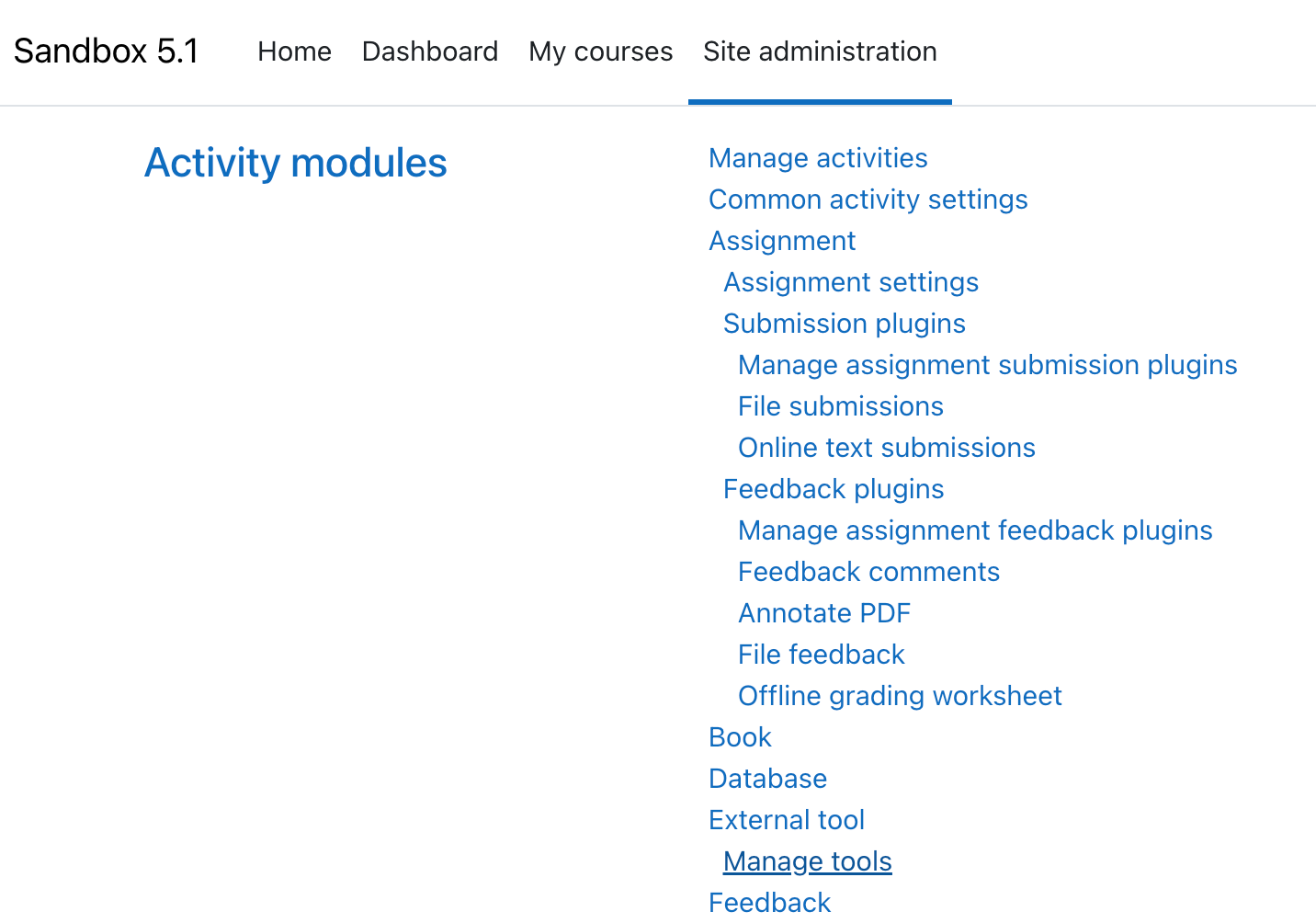
- From Site Administration, navigate to Plugins. In the Activity Modules section, click Manage Tools.
- Copy the appropriate Dynamic Registration URL into the Add Tool field and click Add LTI Advantage.
US schools: https://lti.codonlearning.com/lti/register
Canadian schools: https://ca-lti.codonlearning.com/lti/register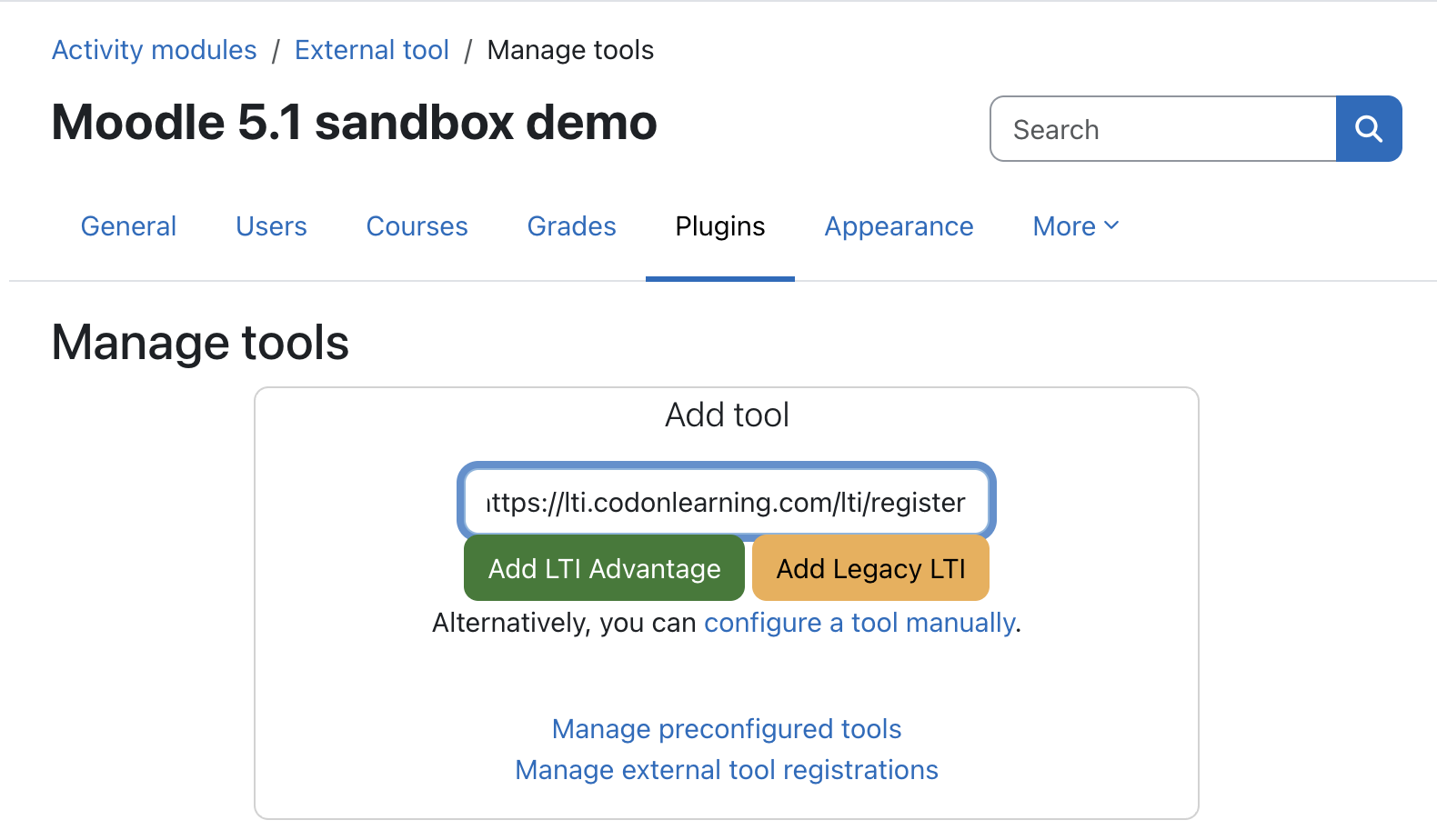
Further down the page, find the new Codon Learning Direct LTI1.3 tool and click Activate.
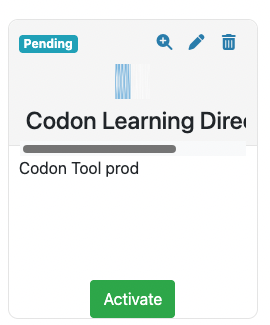
Click Edit (pencil icon). Confirm or change settings:
Tool configuration usage: Show as preconfigured tool when adding an external tool
Default launch container: New window *This is required for the tool to work.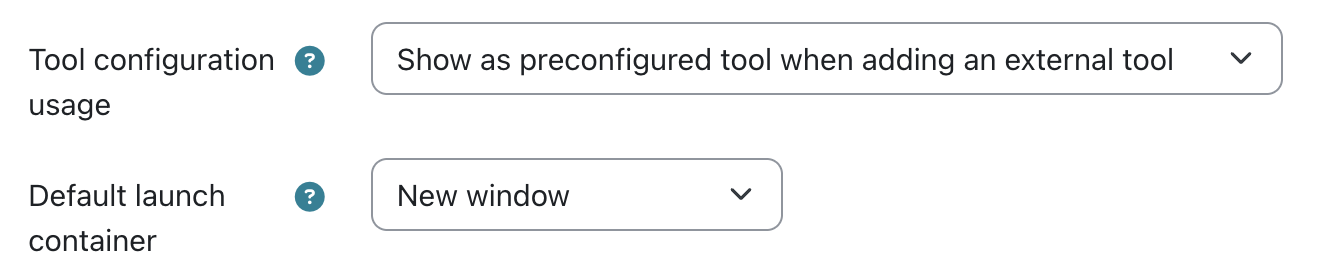
Copy Client ID to share with Codon support. Save changes.
Please note: The tool will not work until activated by Codon.
Notify Codon to finalize set upEmail integrations@codonlearning.com to let us know when you've done the steps above so we can finalize the integration. Please include:
* The Client ID of the new tool, for verification.
* If testing, the email address for a Moodle instructor account you'll use to test. All instructors must have a pre-existing account and course in Codon for launch to work. We'll be happy to set up a test account for you.
* If setting up a course link on behalf of an instructor, the instructor name and course name planned for setup, so we can let that instructor's support specialist know and verify that a Codon course is ready for linking.
Test course link
Logged in as an instructor in Moodle, open a test course.
OR if setting up the link in a real course on behalf of the instructor, please be sure to impersonate when launching from Canvas to Codon so that the instructor’s user information (not yours) is sent via LTI launch.
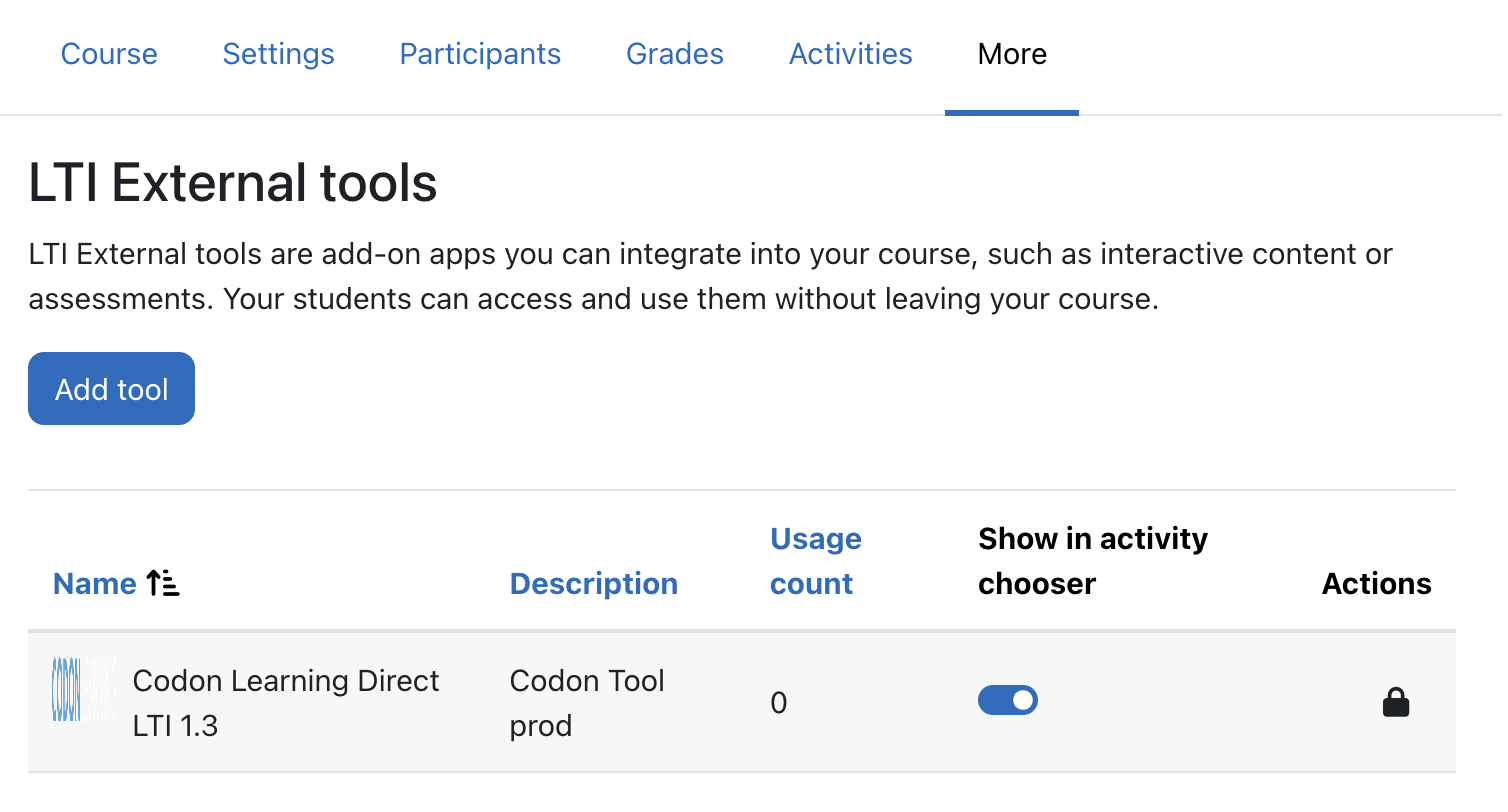
Enable the tool for the course by navigating to More > LTI External Tools. Find Codon Learning Direct LTI 1.3 and toggle on Show in activity chooser.
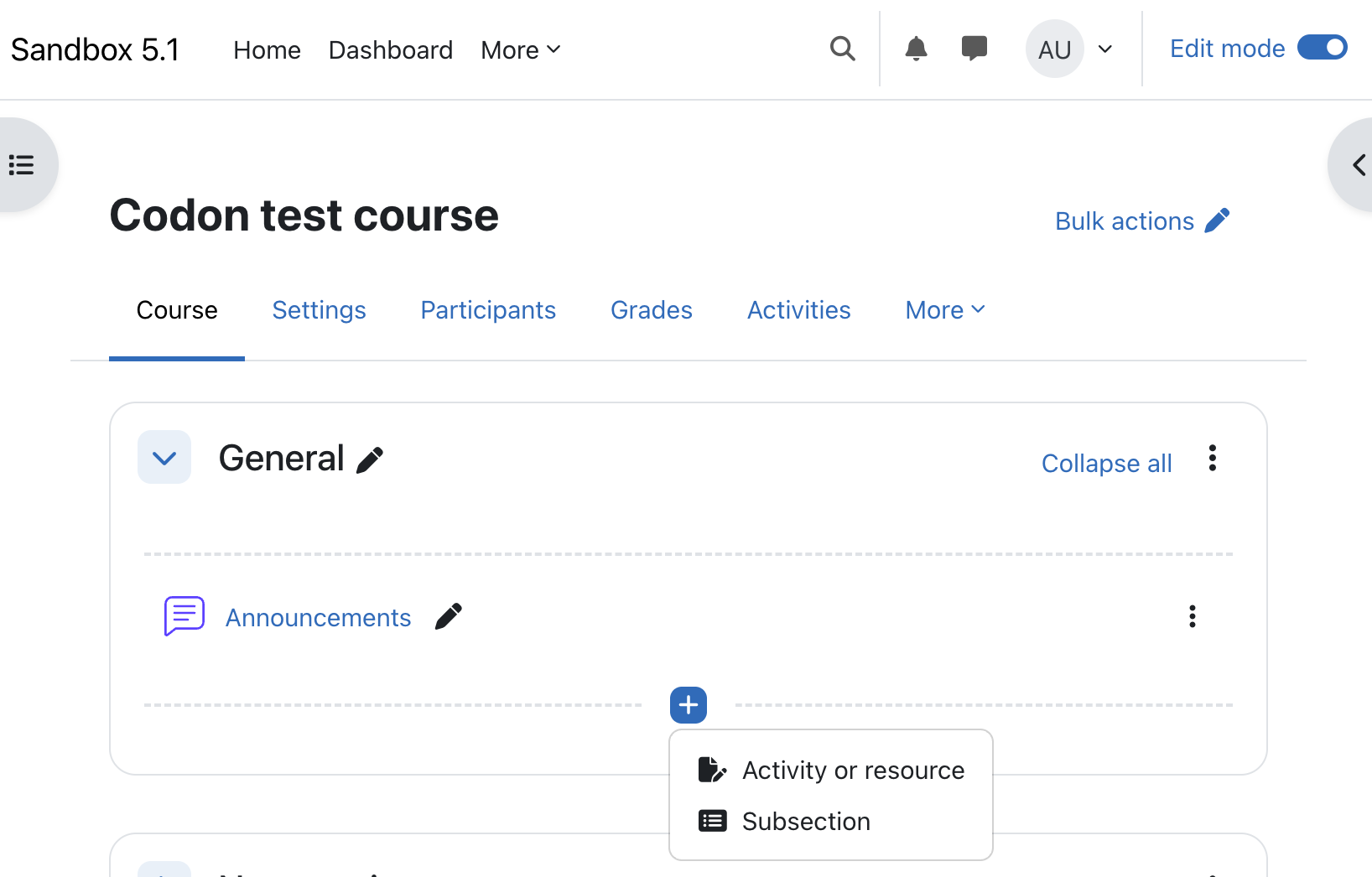
In Edit Mode, add Activity or Resource to the Course.
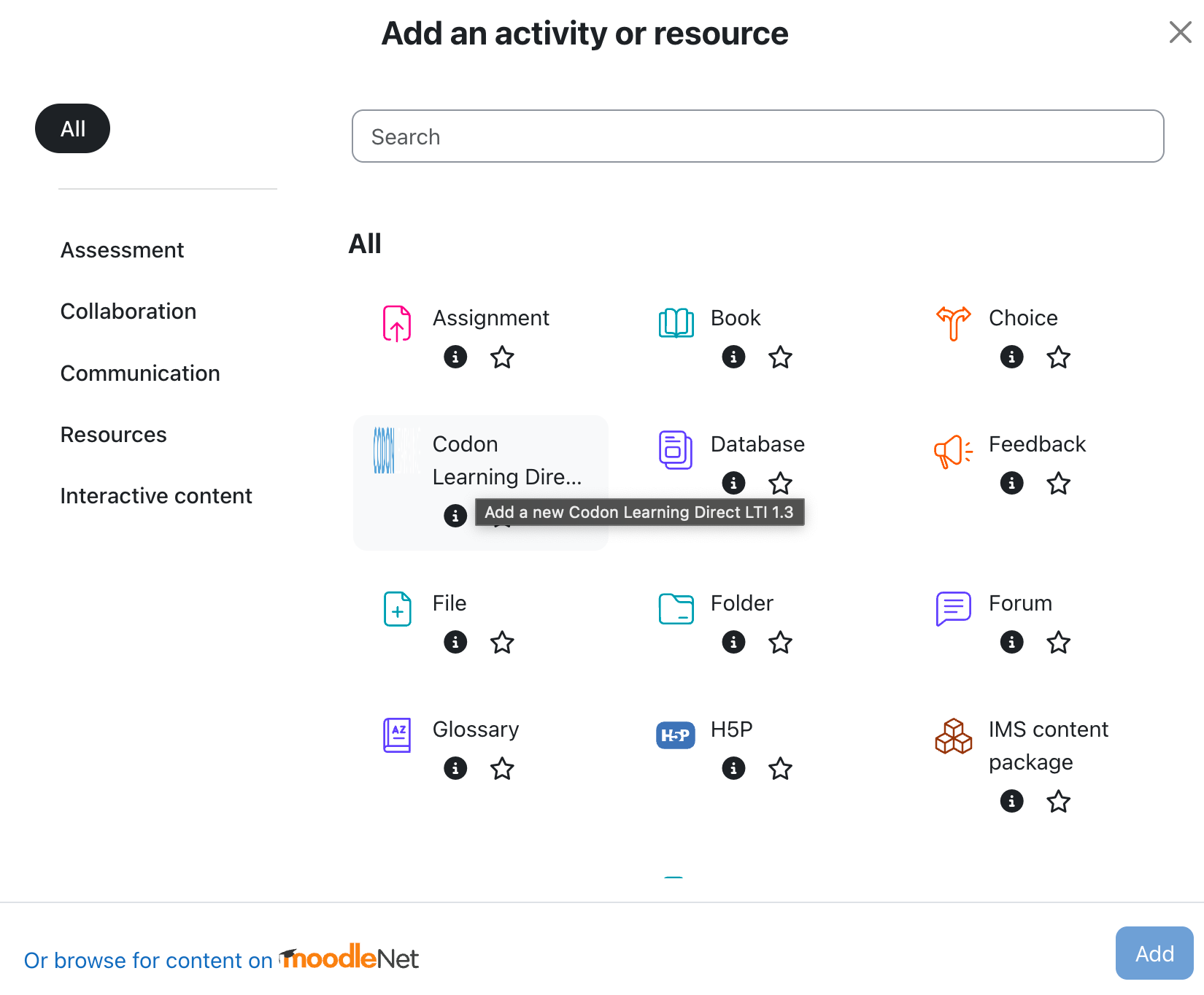
Select Codon Learning Direct LTI 1.3 and click Add.
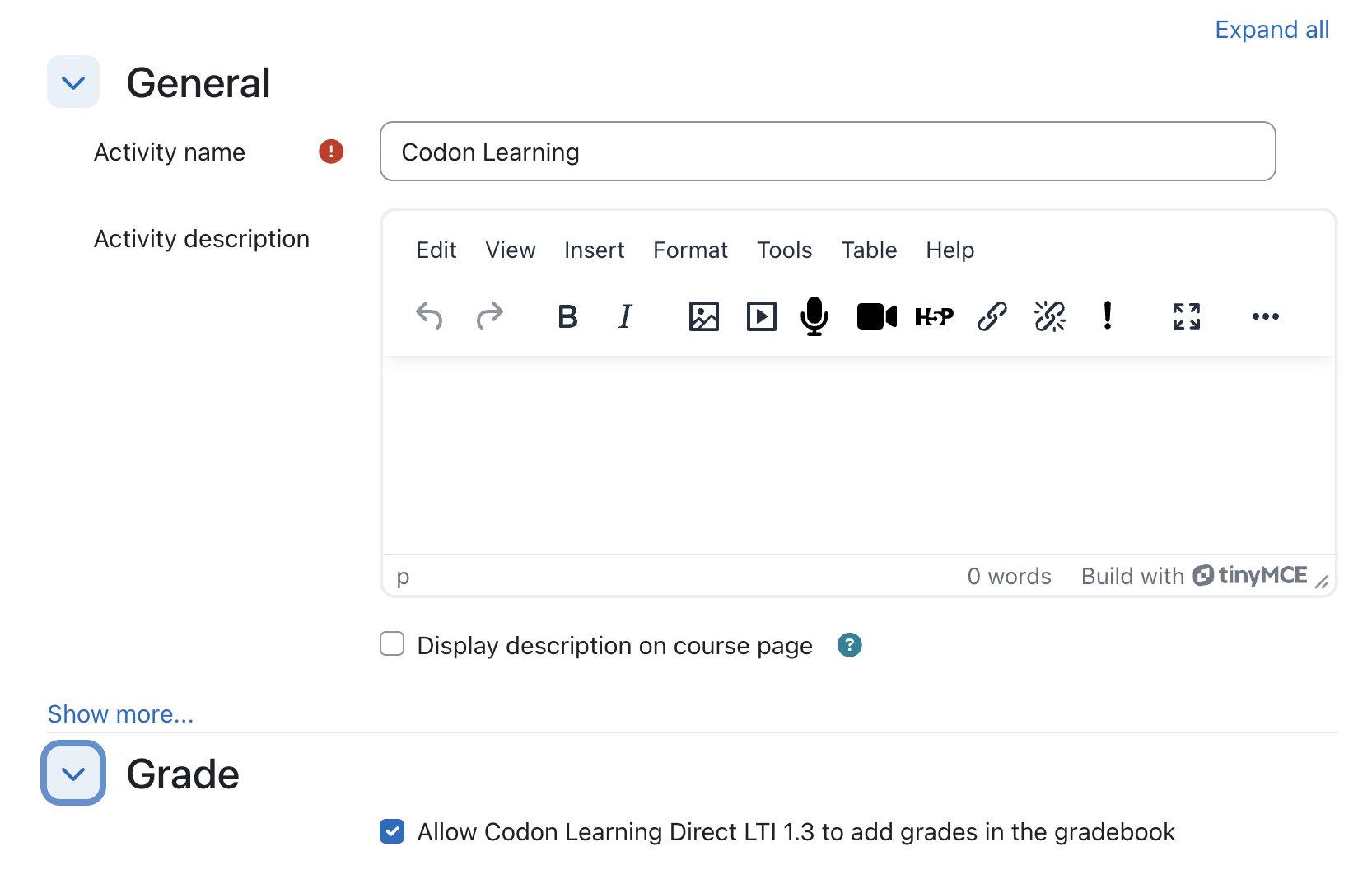
Create the activity, ensuring that Allow Codon Learning Direct LTI 1.3 to add grades in the gradebook is checked.
Click Save and Display.
Launch to Codon by clicking Open in new window.
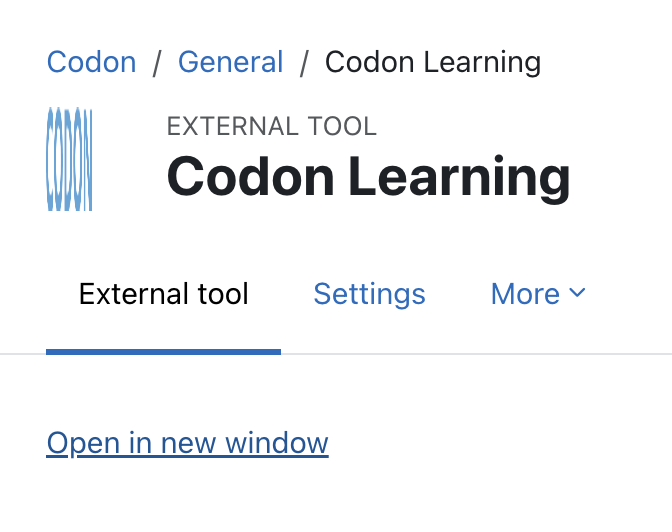
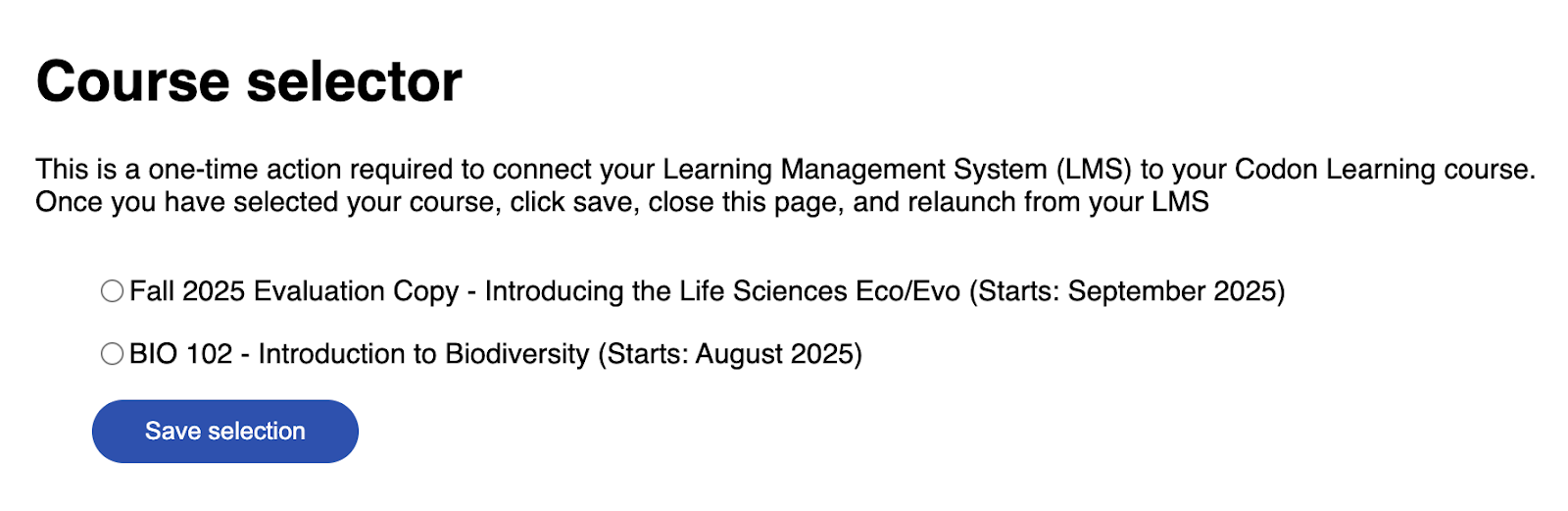
Select the correct course to link with your Canvas course. This is a one time step for each course.
If testing, LMS Test Course is a simple course for confirming functionality of the LMS integration. If you plan to test in multiple environments (e.g. a test environment and prod environment), please let your contact at Codon know so that they can add multiple LMS Test Courses.
If setting up on behalf of the instructor, confirm you are selecting the correct course and section.
Click Save selection.
You should see a message Please close this page, and relaunch your Codon Learning course from your LMS. This means you are successfully connected.
If you relaunch the course from Moodle you will see Codon’s instructor course homepage.
Was this article helpful?
That’s Great!
Thank you for your feedback
Sorry! We couldn't be helpful
Thank you for your feedback
Feedback sent
We appreciate your effort and will try to fix the article