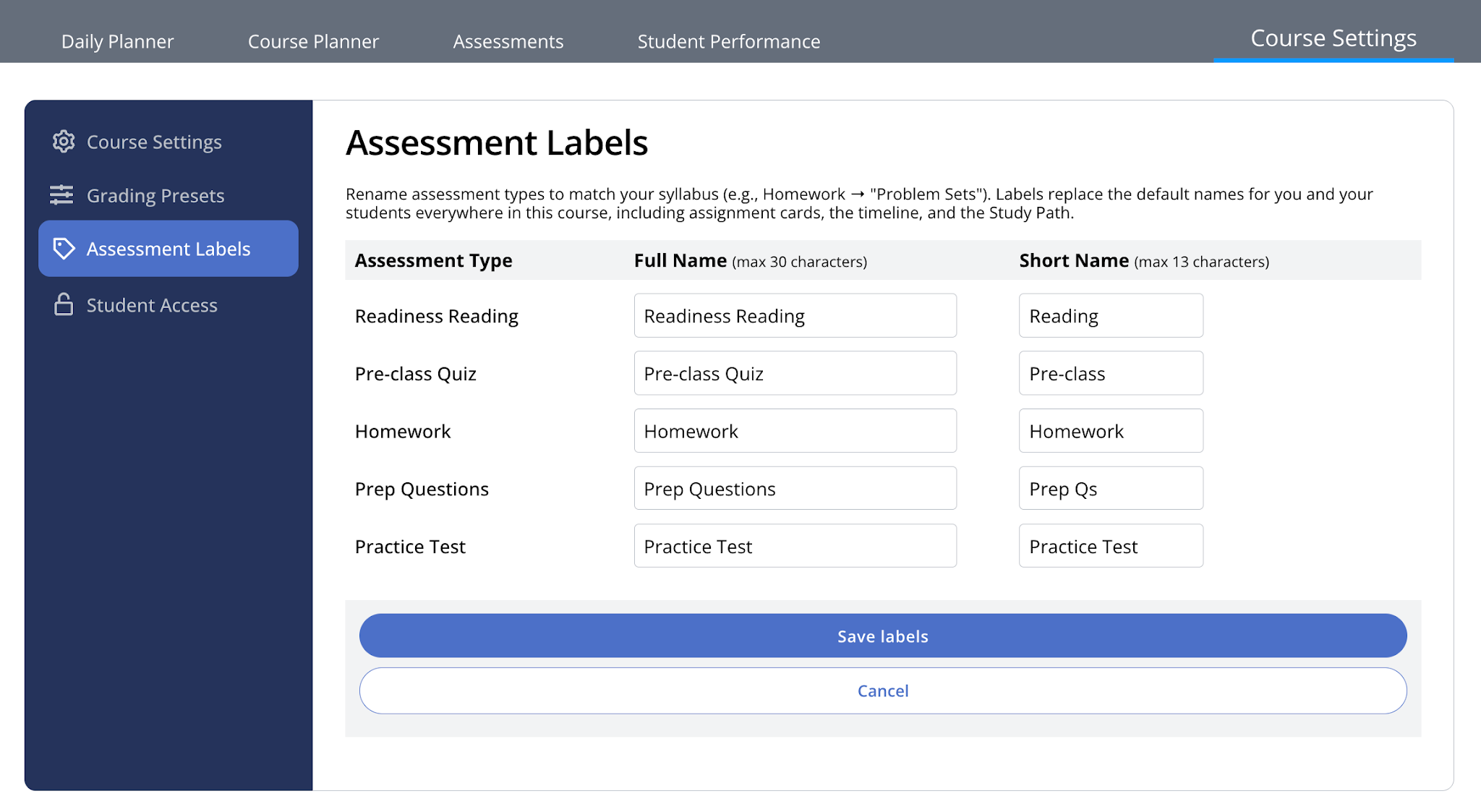
What are custom assessment labels?
You can rename the five main assessment types — Readiness, Pre-class, Homework, Prep, and Practice Test — to match the language you already use in your syllabus. Once you set a custom name for a type, it replaces the default name everywhere you and your students see it in that course: class day cards on the home page, the timeline, the Study Path, and more.
Instructors usually do this for one of two reasons.
Changing the "vibe" of a particular assessment type. Example: renaming Practice Test to something lower-stakes like "Concept Check," or something higher-stakes like "Unit Test."
Repurposing an assessment type they don't otherwise use. Example: using Pre-class or Homework for In-Class Worksheets.
This is a display-only change. It doesn't affect grading, due dates, or how the assessment behaves.
How to set custom labels
Go to Course Settings and select Assessment Labels in the left sidebar.
For each of the five assessment types, enter a Full Name (up to 30 characters) and a Short Name (up to 13 characters). The Short Name is what shows up in tighter spaces, like timeline bubbles and Study Path topic cards.
Select Save labels.
A few things to know before you start
The Full Name and Short Name fields come pre-filled with Codon's default name for each type (for example, "Readiness Reading" and "Reading").
If you change a field and later decide you want to revert to the default name, retype the original default text shown in the row label; there's no separate "reset" button.
Changes take effect immediately for everyone in the course, including students. There's no grading or progress impact — it's purely how things are labeled.
You cannot leave a field blank, and character limits are enforced when you save: 30 characters for Full Name, 13 for Short Name.
If you duplicate a course, the new course copies over your custom labels automatically.
Codon's default names
A worked example
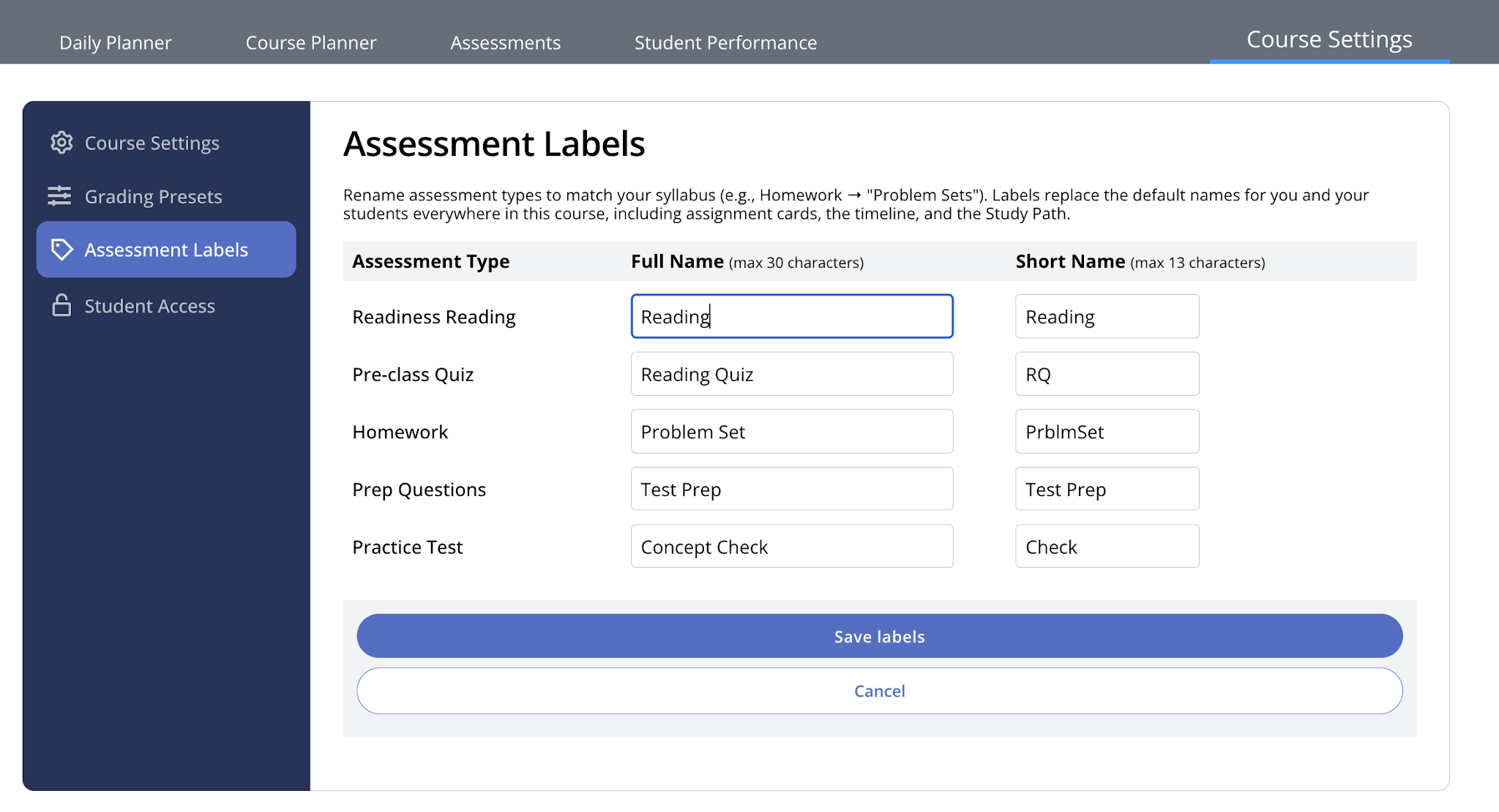
Here's a course where the instructor renamed all five types:
With those labels set, here's what changes across the course:
On the instructor's Daily Planner
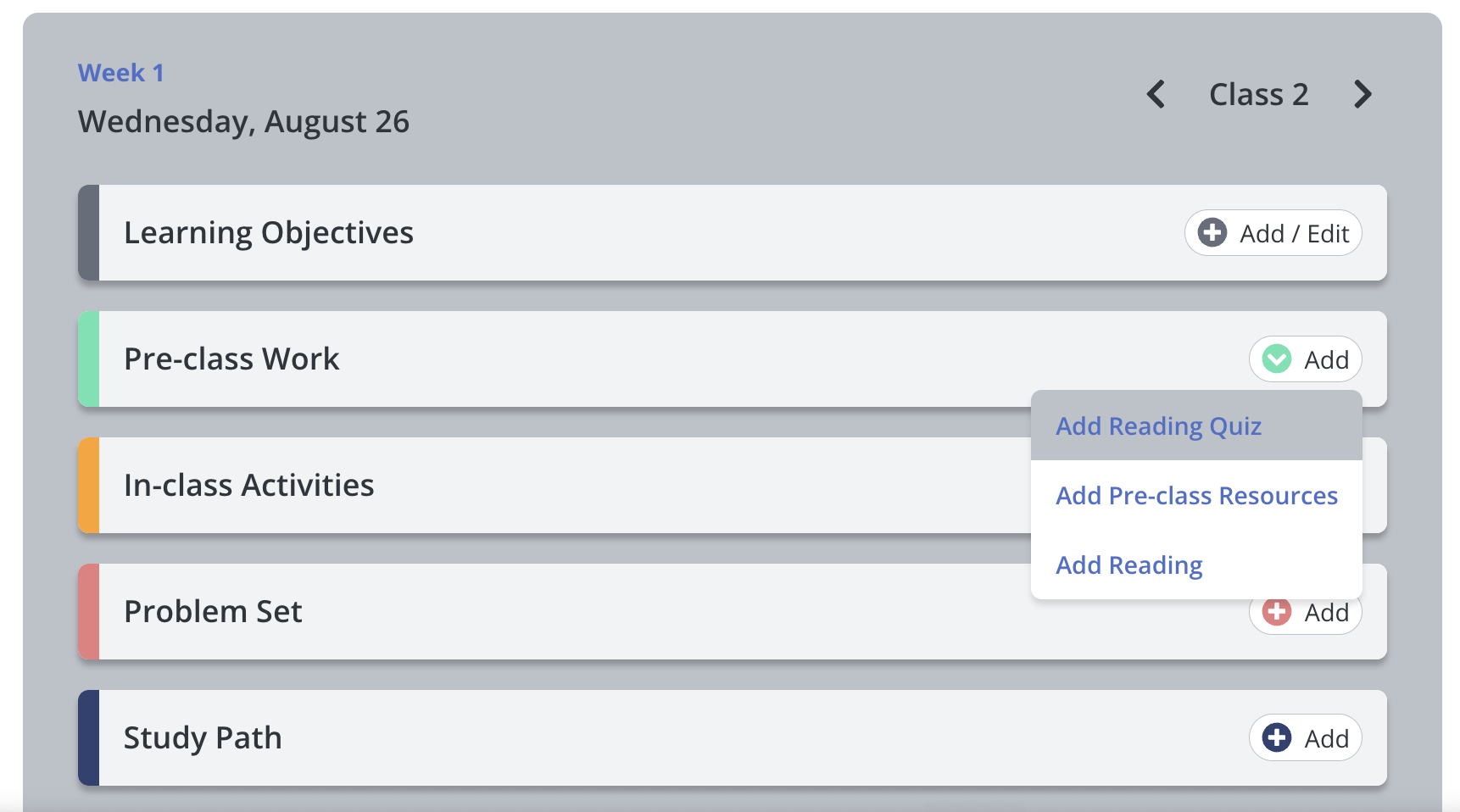
the class day-card section that used to say "Homework" now reads "Problem Set"
the "Add" Pre-class Work dropdown for that day offers "Add Reading Quiz" and "Add Reading"
the fixed "Add Pre-class Resources" option stays as-is, since that's a separate, non-renameable category for external links
The parallel class day view in the student's Course Home similarly shows the updated names, where assignments exist
Timeline pills across the instructor AND student experience show the Short Names: "Reading," "PrblmSet," "Test Prep," "Check."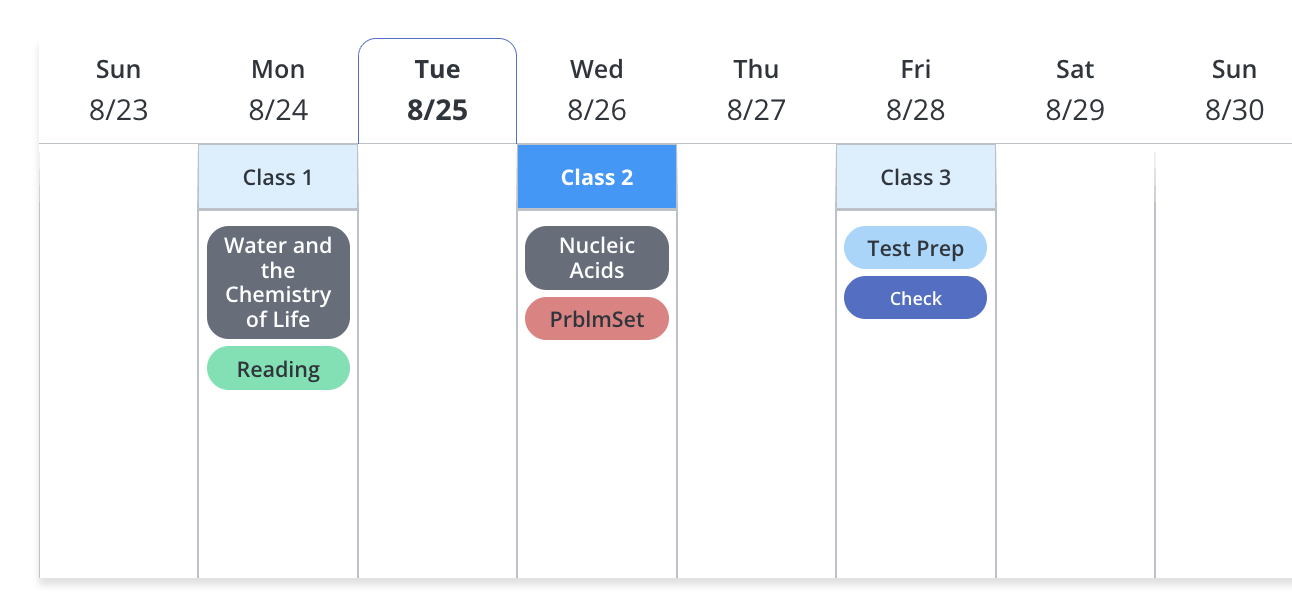
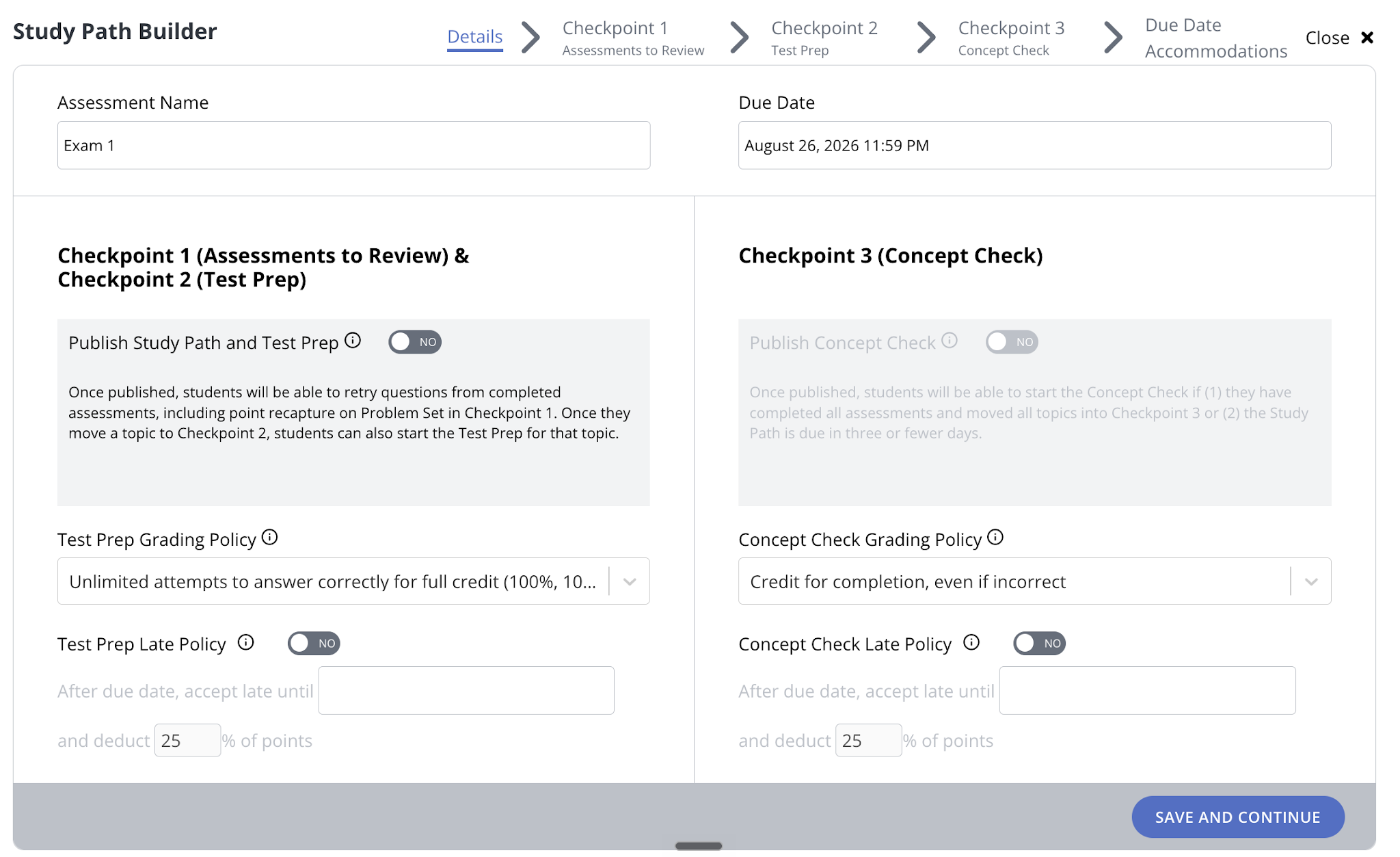
In the instructor's Study Path Builder
the checkpoint steps and their settings pick up the Full Names: "Checkpoint 2 (Test Prep)" and "Checkpoint 3 (Concept Check)," along with grading and late-policy fields like "Test Prep Grading Policy" and "Concept Check Late Policy."
Assessment names for Study Path Prep and Practice Test pair use the new Full Names too — for example, an exam named "Exam 1" gets companion assessments named "Exam 1 Test Prep" and "Exam 1 Concept Check."
On the student's Study Path,
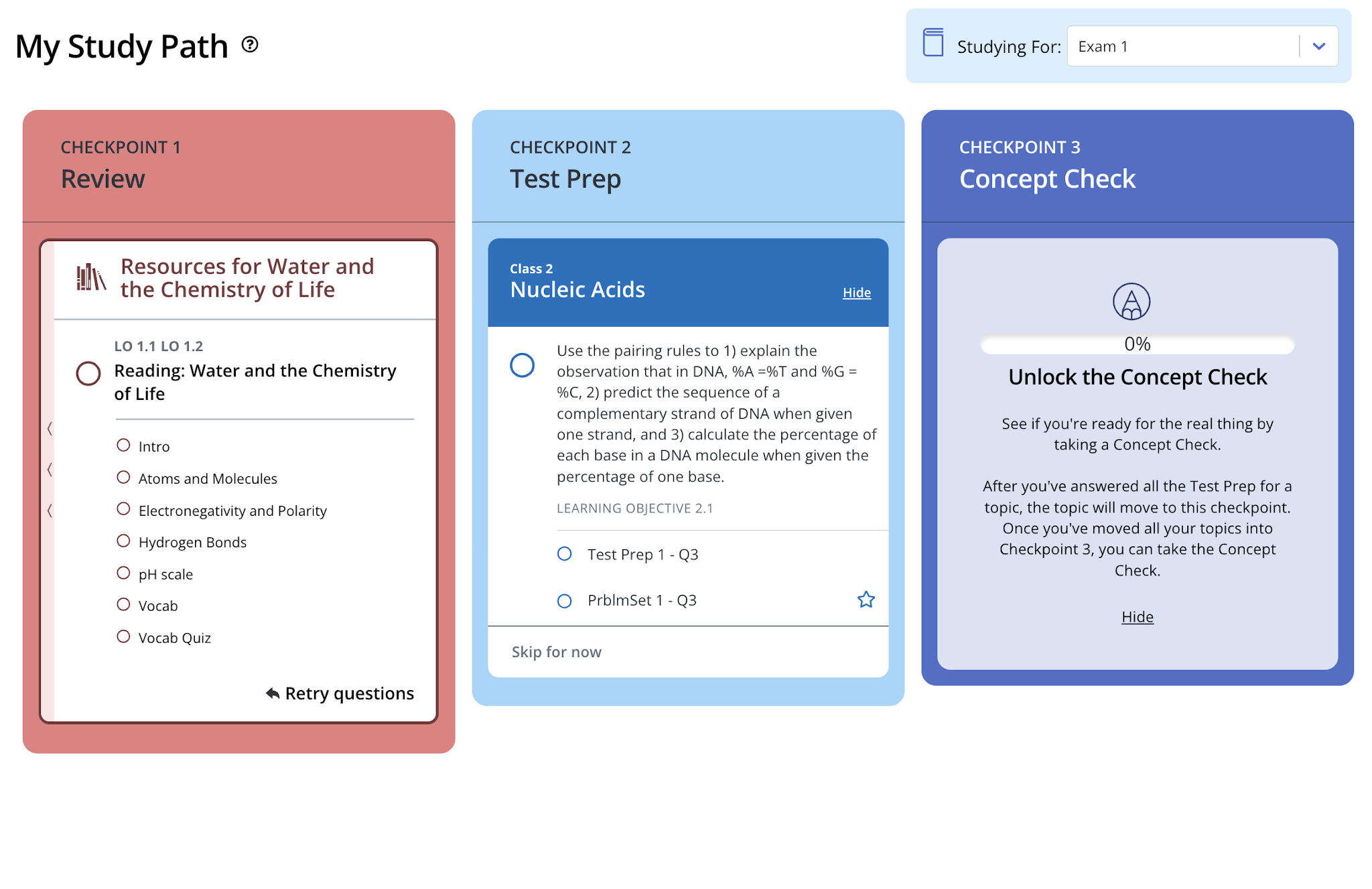
the Study Path shows "CHECKPOINT 2 / Test Prep" and "CHECKPOINT 3 / Concept Check" as column headers, with "Unlock the Concept Check" as the call-to-action in Checkpoint 3.
Inside topic cards, question navigation uses the Short Names, like "PrblmSet 1 - Q2" and "Test Prep 1 - Q3."
Frequently asked questions
Is how I'm seeing assessment labels when I 'See Student Preview' representative of the actual student view? Yes! The one exception is the Study Path, which does not currently work in Student Preview mode. The infographic/step-through shown there only shows default text.
Will this affect grading or LMS syncing? No. The underlying assessment type is unchanged. This only changes what it's called. If your course syncs assessment names to your LMS gradebook via LTI, the renamed labels will flow through automatically since they're part of the assessment name.
Can I rename just one assessment, like "Midterm Practice Test" specifically, without affecting others? No, custom labels apply to the whole course, across every assessment of that type.
Does this work retroactively for assessments students are already working on? Yes — the label change is immediate and applies even to in-progress assessments. Nothing about their progress or grading is affected.
Was this article helpful?
That’s Great!
Thank you for your feedback
Sorry! We couldn't be helpful
Thank you for your feedback
Feedback sent
We appreciate your effort and will try to fix the article